Email Sequences in Helpmonks: A New Canvas, Branching, and a Better Recipient View
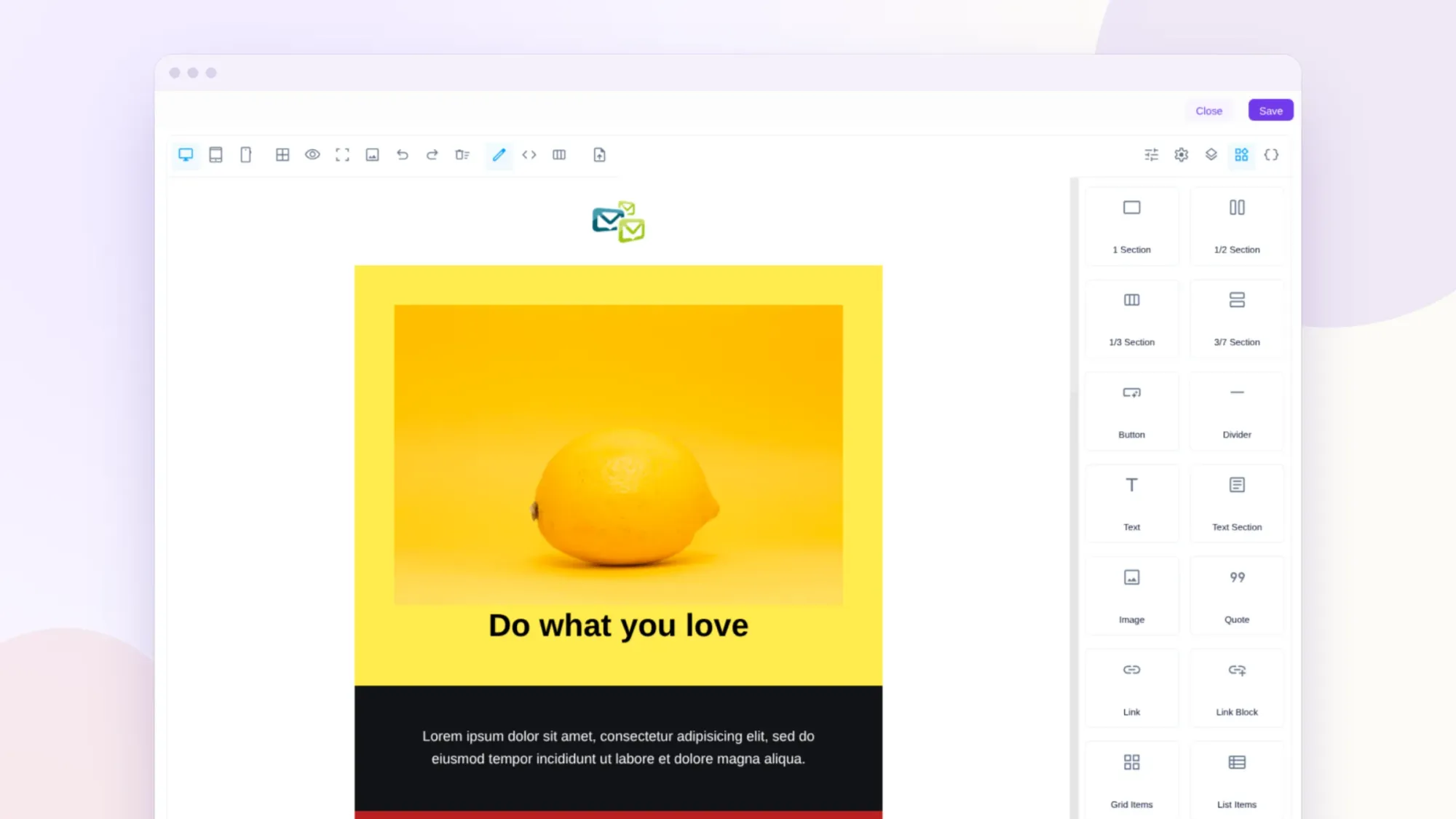
Email sequences in Helpmonks have a new editor. You now build a sequence on a canvas, send contacts down different paths based on what they do, and see where each recipient stands without opening a report.
The old editor showed a sequence as a list. That worked while every contact got the same emails in the same order. It got harder once you wanted a contact who clicked to get one follow-up and a contact who stayed quiet to get another. So we rebuilt it around three things: the canvas, branching, and the recipient overview. Here's how each one works.
Build your sequence on a canvas
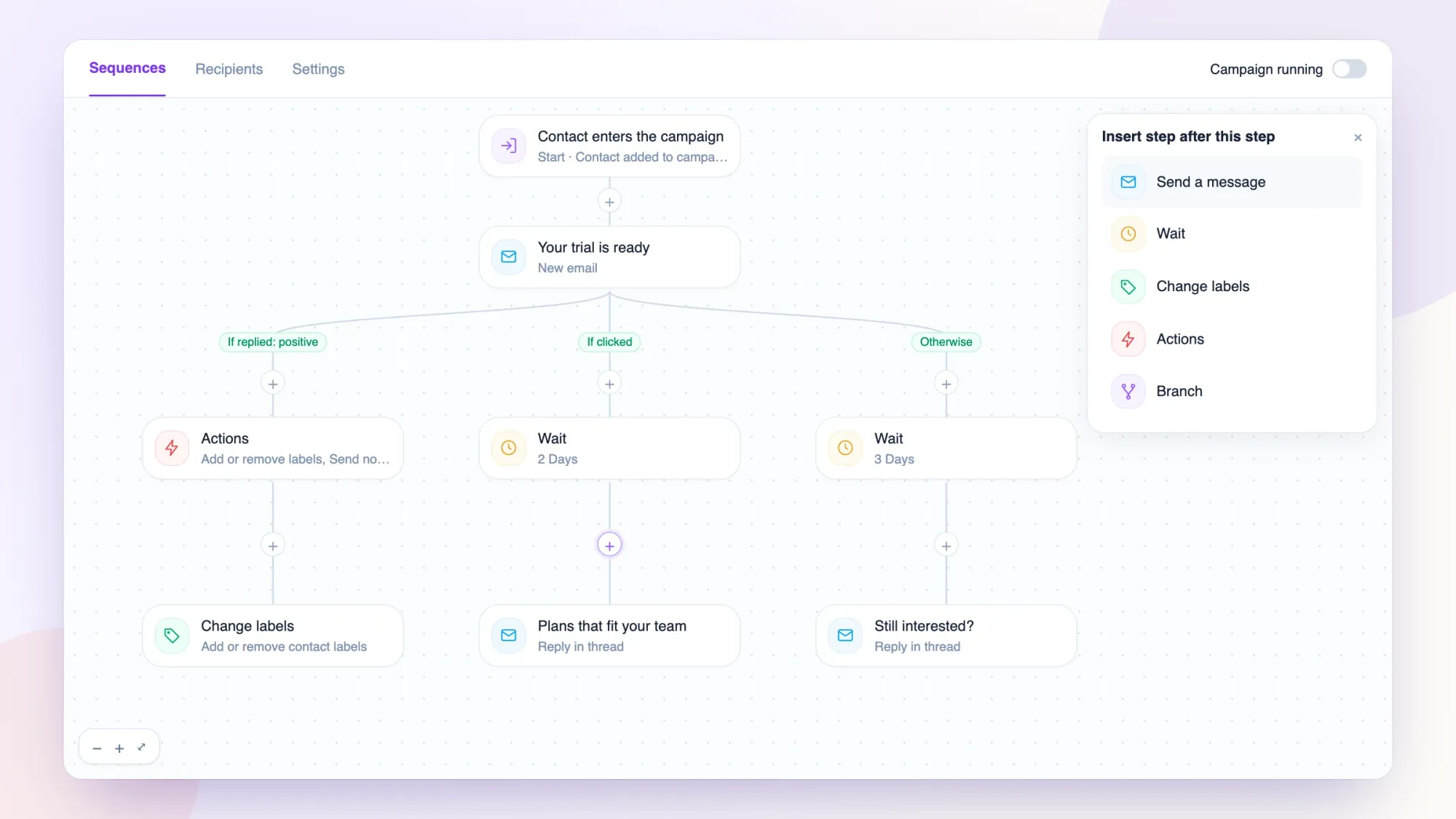
Open an email automation and select Sequences. The whole sequence is laid out in front of you, from the start trigger at the top down through every step and path. Each step is a compact card, and the lines between the cards show where a contact goes next.
To add a step, select the circular + on any connecting line and choose what goes there:
- Message sends an email, either as a new email or as a reply in the same thread.
- Wait sets the time before the next step runs.
- Labels adds or removes contact labels.
- Actions runs one or several actions when a contact reaches it.
- Branch splits a message into separate paths.
A new step keeps the previous destination of its line, so inserting a step never breaks the path around it. Deleting works the same way: the previous step reconnects to the one that followed. If contacts are waiting on a step you delete, Helpmonks asks where to send them, so nobody gets stranded.
Select any card to edit it in the side panel. Every editor has the same row of buttons: a trash icon on the left for saved steps, then Cancel and Save. The trigger card works like the others. Select it to choose whether a sequence starts when a contact is added to the campaign or when their labels change.
Longer sequences stay easy to move around. Drag an empty area to pan, or use Zoom in, Zoom out, and Fit sequence in the corner of the canvas. You can also get around with the keyboard: Tab moves between controls, and the arrow keys scroll the focused canvas.
Actions get their own card
Follow-up actions used to live inside a message. They now have their own Actions card, which means you can see them on the canvas instead of finding them inside an email. An Actions card can change labels, go to a later step, remove or pause the contact, complete the sequence, move the contact to another campaign, or send a notification to your team.
Send contacts down different paths
Branching is the biggest change. Select + on a message step, choose Branch, and pick a condition. Each condition gets its own column on the canvas, and you add that path's steps with the + below it.
You can route contacts on what they did with an email:
- Opens and clicks: If opened, If clicked, If didn't open, and If didn't click, each checked within a window you set.
- Replies: If replied, If didn't reply, and If auto-reply / out of office.
- What the reply says: the sentiment (positive, negative, or neutral) or the intent, such as wants pricing, not interested, or wrong person.
- Everything else: Always runs after a set wait, and Random split sends a share of contacts, from 1% to 99%, down one path.
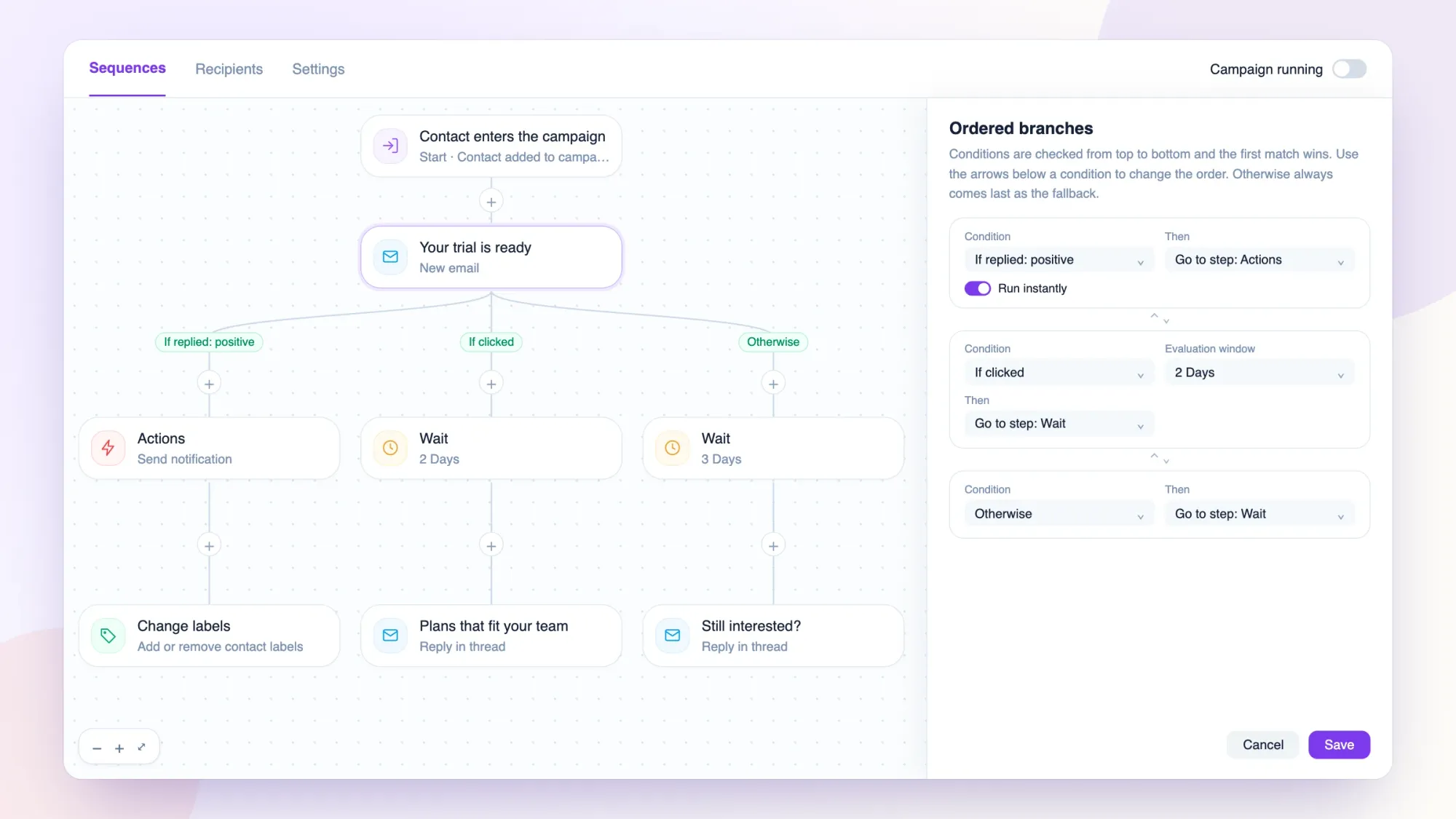
Conditions run from top to bottom, and the first match wins. The small arrows below a condition change its order. Otherwise always stays last and catches every contact that didn't match anything above it. When you add the first condition to a message, Otherwise keeps the message's old next step, so your existing flow carries on as it did.
Each condition then needs a destination: a later step, complete the sequence, pause the contact, or hold an automatic reply. Branches only point to later steps, which prevents a contact from looping forever.
A practical example
Say you send a trial follow-up to new signups. You could set it up like this:
- If the reply is positive, an Actions card labels the contact and notifies your sales team.
- If they clicked your pricing link, wait two days and send a short email with plan details.
- Otherwise, wait three days and send one more check-in.
All of it lives in one sequence you can read from top to bottom.
Run instantly, or wait
Opens, clicks, and human replies can use Run instantly. The contact moves as soon as the event arrives and skips any waits on the selected path. Turn it off to check at the next scheduled step instead. Email delivery still goes through the normal sending queue.
Negative conditions can't run instantly. Helpmonks can only know that someone didn't click once the whole window has passed.
Replies are still handled with care
Helpmonks has always stopped a sequence when a person replies, and that hasn't changed. A human reply stops the ordinary follow-ups right away, and a reply branch you've set up can then take over. An open or click branch won't send that contact down its Otherwise path after they've replied.
Reply sentiment and intent need at least 70% classifier confidence. Below that, the reply counts as unknown and can take Otherwise or a condition you've set for unknown replies, so a vague answer doesn't land someone on the wrong path.
Out-of-office messages get their own treatment. Choose Automatic reply with Hold until return date, and a contact with an explicit return date stays on hold until that date. Without a clear date, the contact stays held until you resume them yourself.
See where every recipient stands
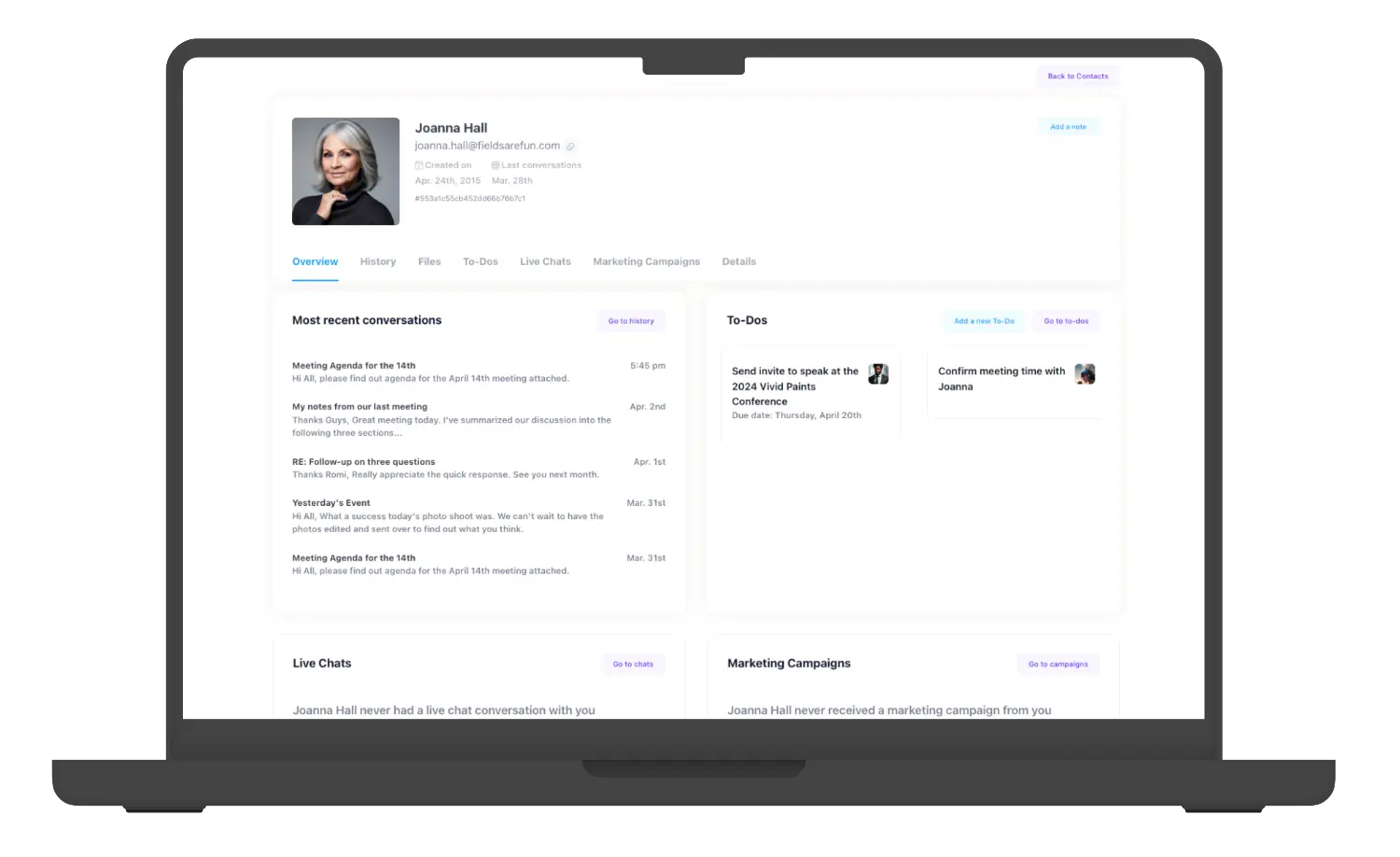
The Recipients tab has been redesigned too. A progress bar at the top shows the split of your recipients at a glance, and filter chips with counts let you jump to running, paused, completed, or unsubscribed contacts with one click.
Each row shows the contact, their status with a short email position such as 1/6, the next action, and when they were added. When a contact is waiting on a branch, the next action tells you which message it depends on and when it will be checked next. Hover over a row for a quick Pause, Resume, or Retry button.
Select a row to open the activities drawer. It lists everything that has happened to that contact, newest first, along with their status and next scheduled time. From there, you can pause or resume them, mark them as completed, unsubscribe them, or remove them. Failed contacts also get a Retry button.
Problems are easier to spot as well. Failed sends appear in a banner with a link to the affected contacts. If recipients belong to contacts that have since been deleted, a separate notice offers a one-click clean up.
What happens to your existing sequences
You don't need to rebuild anything. Older sequences convert the first time you open them while they're stopped. Helpmonks shows a progress bar, converts the sequence once, and reloads it in the new format. Each message with follow-up actions gets a branch on the same event plus an Actions card, and Otherwise keeps the old next step.
A few details are good to know before you start:
- Stop a running automation before you edit it. Helpmonks rejects step changes while it runs.
- Running sequences only convert after you stop them, and contacts still waiting on an old follow-up at that point won't receive it.
- A message that re-sends itself, goes back to an earlier step, or already has branches stays unchanged and keeps running the old way.
Try it on one sequence first
The easiest way to get a feel for the canvas is to pick a sequence you already run, stop it, and open it. Then add a single branch for replies or clicks and see how the path reads. You can add more from there.
Want some ideas for what to send on each path? Our email sequence best practices and templates and our guide to drip campaigns are good places to start. You can also read more about email sequences in Helpmonks and our other marketing automation tools.
We'd love to hear how it works for you.
About Helpmonks
Helpmonks is a shared inbox for teams that work with customers. Your team answers customer email together, keeps each customer's history and details in one place, and sends email campaigns and follow-ups to the same contacts. Every plan includes unlimited users.
Sign up for free and try Helpmonks for 30 days, or compare the plans.