A New Email Editor for Your Helpmonks Campaigns
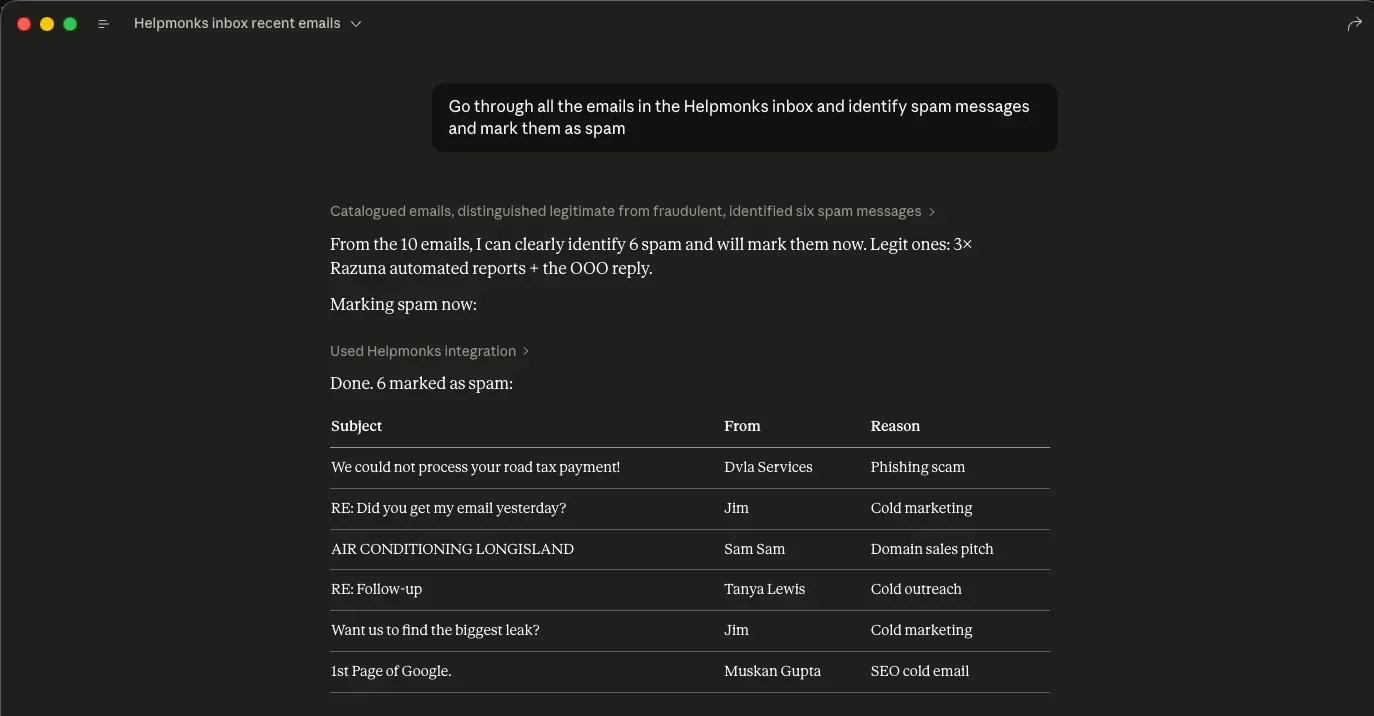
Campaign emails in Helpmonks now have a new editor. You build the email visually, with blocks for sections, text, images, and buttons. You can also bring in an email that was designed somewhere else and keep editing it right here. Campaigns and reusable marketing templates both use the new editor.
Here's what changed and how it compares to the previous editor you used before.
A visual editor made for email layouts
Open a campaign and select Edit in the Content card. Your email sits in the middle of the screen. The panels for styles, settings, layers, and blocks are on the right.
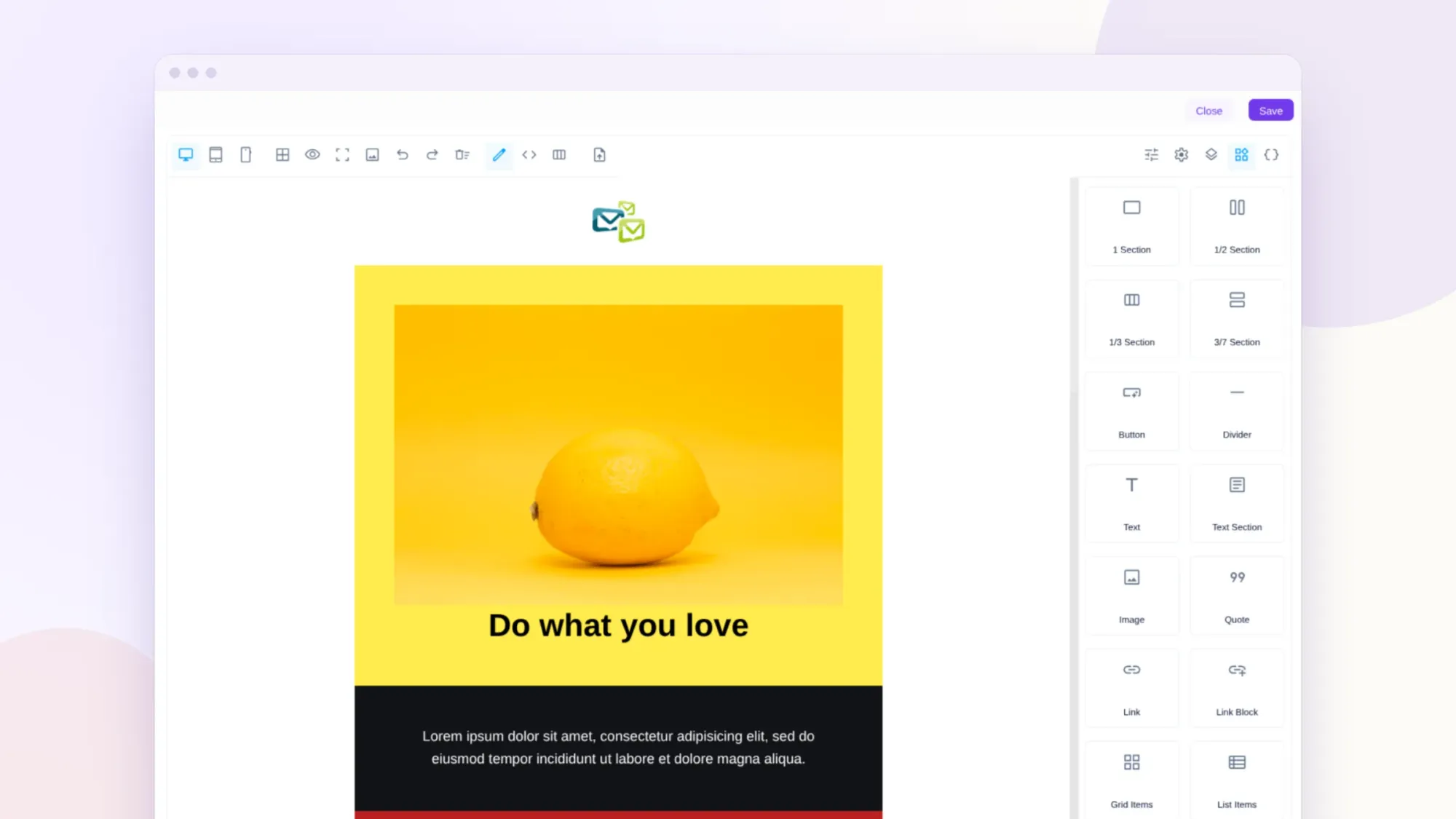
To add content, drag a block onto the email. You get one-column and multi-column sections (1/2, 1/3, and 3/7), text, text sections, images, buttons, dividers, quotes, links, and link blocks. Double-click any text to change it. Double-click an image to swap its URL, and select a link to change where it points. Undo and redo cover all of these edits.
The device buttons in the toolbar show your email at desktop, tablet, and mobile widths. You can check the phone layout before anyone else sees it.
Import the HTML you already have
Many teams already have emails they're happy with. Maybe an agency designed your newsletter, or you have campaigns built in Mailchimp or Campaign Monitor. Rebuilding those emails block by block is slow.
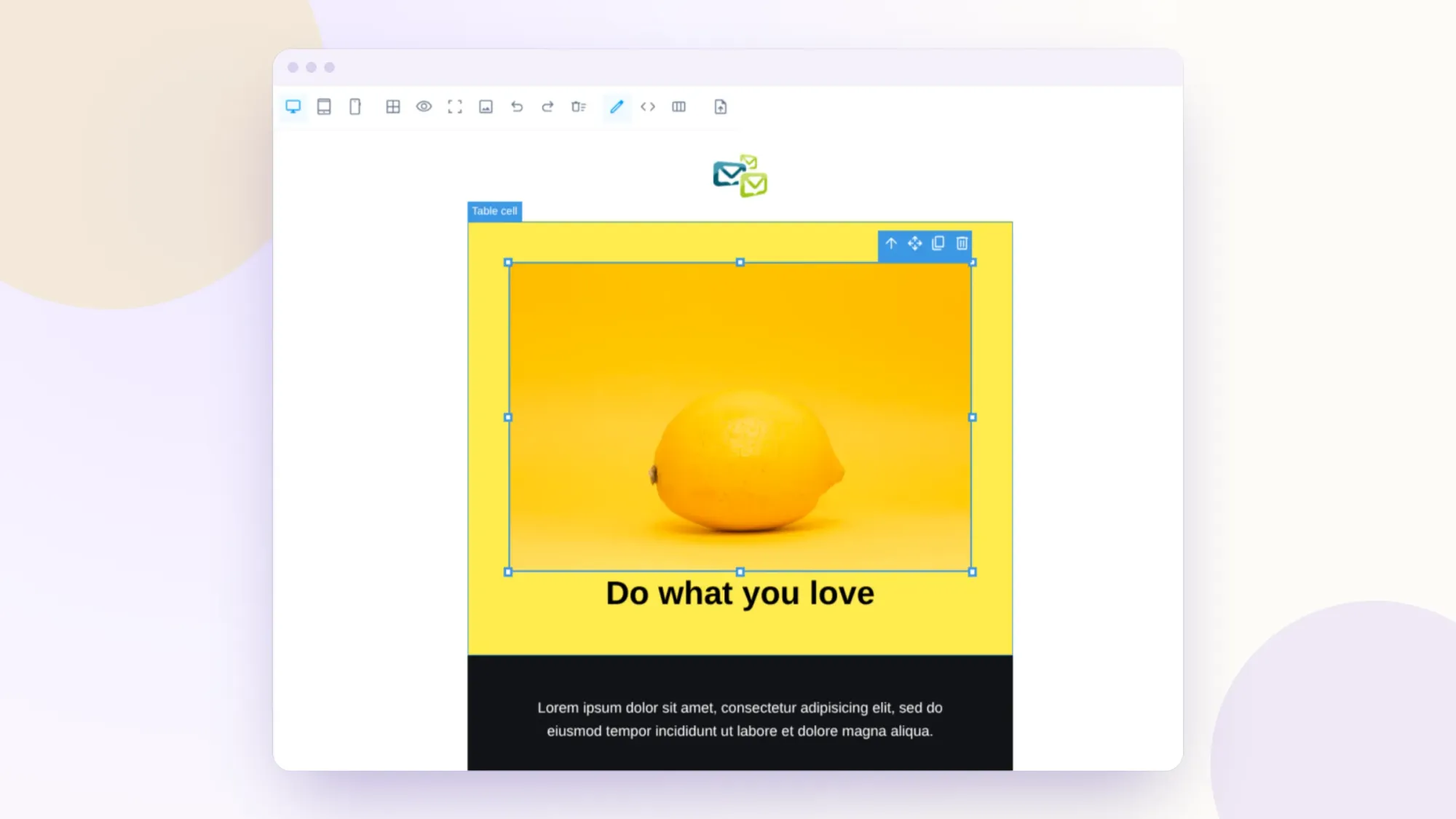
Select the Import an email icon in the toolbar. Paste the HTML and select Import, or choose an HTML file with Import from file. The editor reads the tables, inline styles, and media queries and turns them into regular editable blocks. Headings, paragraphs, images, and buttons become pieces you can click and change. The design isn't locked inside one big chunk of code.
We tested this with real campaigns exported from Mailchimp, Campaign Monitor, and StampReady, plus plain HTML. All of them came in as editable layouts and stayed close to the original at desktop and mobile widths.
Use Compare previews to see your original HTML beside the version the editor will send. The original also stays available to download, so you can always go back to the source.
A few things to know. Outlook-specific conditional code is removed during import, and so are external fonts and stylesheet links. Merge tags from other email providers remain in the text, but Helpmonks won't fill them in. Replace them with Helpmonks variables. ZIP archives aren't imported, so open the HTML file inside the archive. After an import, check the desktop and mobile previews and send yourself a test.
Edit the code when you want to
Some changes are faster in code. Open HTML / code to see the current HTML of your email, including the edits you just made in the visual view. Change what you need and select Apply changes, and the visual editor updates. Cancel leaves the email as it was. If you try to leave with unapplied code changes, Helpmonks asks first.
Personalize with your own fields
Select the curly-brackets Variables icon to open the list of your account's fields. It includes the default fields and any custom fields you created for customers and companies. Place the cursor in your text and choose a variable. It works in the code view too. When the campaign goes out, Helpmonks fills in each recipient's values.
What's better than the old editor
The Redactor-based editor served campaigns for years, but it was built around its own template format. The new editor works with the HTML that email clients actually receive. In practice, that gives you:
- HTML import. Bring in finished emails from other tools and edit them visually instead of rebuilding them.
- Blocks you can drag. Add sections, columns, and content where you want them, then rearrange them in the Layers panel.
- Visual and code editing together. Switch between the two without losing your work.
- Previews for every screen size. Check desktop, tablet, and mobile from the toolbar.
- Email-ready output. Styles are inlined when the email is saved, so it's ready for inboxes.
- Safer imports. Scripts, forms, embedded content, and unsafe links are stripped from imported HTML.
- Careful saving. Nothing changes until you select Save. Closing the editor, reloading, or picking another template with unsaved changes asks first. If a save fails, your edits stay on screen so you can try again.
Your existing campaigns and templates
Your current campaigns and templates still open. Opening one, or choosing a template for a campaign, doesn't change anything that's saved. Older templates in the previous editor's format are converted when you open them. The first time you save, Helpmonks keeps a backup of the previous version.
Reusable templates live under Marketing → Templates, and they use the same editor. Built-in templates are read-only. Select Use template in the preview to get your own editable copy. Selecting a template in a campaign copies its layout into the campaign, so later campaign edits don't change the template.
A few more details:
- Send test email saves your content first, then sends the test through the campaign's mailbox.
- Campaigns still need an unsubscribe link before saving. Templates don't, but add one before you use a template in a campaign.
- Images are added by URL. Double-click an image and paste the address of the hosted image.
- If the same campaign is open in two browser tabs, a save from the older tab won't overwrite the newer one.
Try it on your next campaign
Open a draft campaign and select Edit. Start from a template, or import an email you already like. Change the text, insert a variable or two, check the mobile view, and send yourself a test. We'd love to hear how it works for you.
Need ideas for what to send? Our 12 email marketing strategies and 10 real-world email marketing examples are good places to start. To follow up with contacts automatically after a campaign, set up an email sequence or read our guide to drip campaigns.
About Helpmonks
Helpmonks is a shared inbox for teams that work with customers. Your team answers customer email together, keeps each customer's history and details in one place, and sends email campaigns and follow-ups to the same contacts. Every plan includes unlimited users.
Sign up for free and try Helpmonks for 30 days, or compare the plans.