New in Helpmonks: Simpler AI Replies, Private Text Checking, and EML Previews

We've made three improvements to everyday email work in Helpmonks: a simpler way to write with AI, private spelling, grammar, and style checking, and previews for attached EML files.
The AI changes have been available for a little while, but they deserve a closer look. Combined with Knowledge Sources, the new writing flow gives your team a practical way to create replies that reflect your organization's knowledge and voice.
Tell Helpmonks what you want to say
You often know the answer before you know how to phrase it. A customer needs an explanation, a prospect needs a next step, or a teammate has given you the facts to pass along. Turning those points into a useful email should take less work.
The AI writing panel now starts with one text field: “What would you like to say?” Write your instructions in plain language, choose a Style, and select Write with AI. You can start with a few rough notes instead of composing a finished email first.
For example, you might write: “Thank them for the details, explain the setup steps, and ask which step they reached.” The style choice helps shape how the reply reads. Review the proposed text, make any changes you want, then select Use message to put it into your email. You still decide when the message is ready to send.
That same flow is useful when you already have a draft. Edit the text and ask AI to work on it again, or choose a different style when the wording needs a different tone. Your instructions remain the starting point.
Your instructions, your style, your organization's knowledge
The text field tells Helpmonks what you want to communicate. Style helps with how to say it. Knowledge Sources supplies the company context that makes the answer useful.
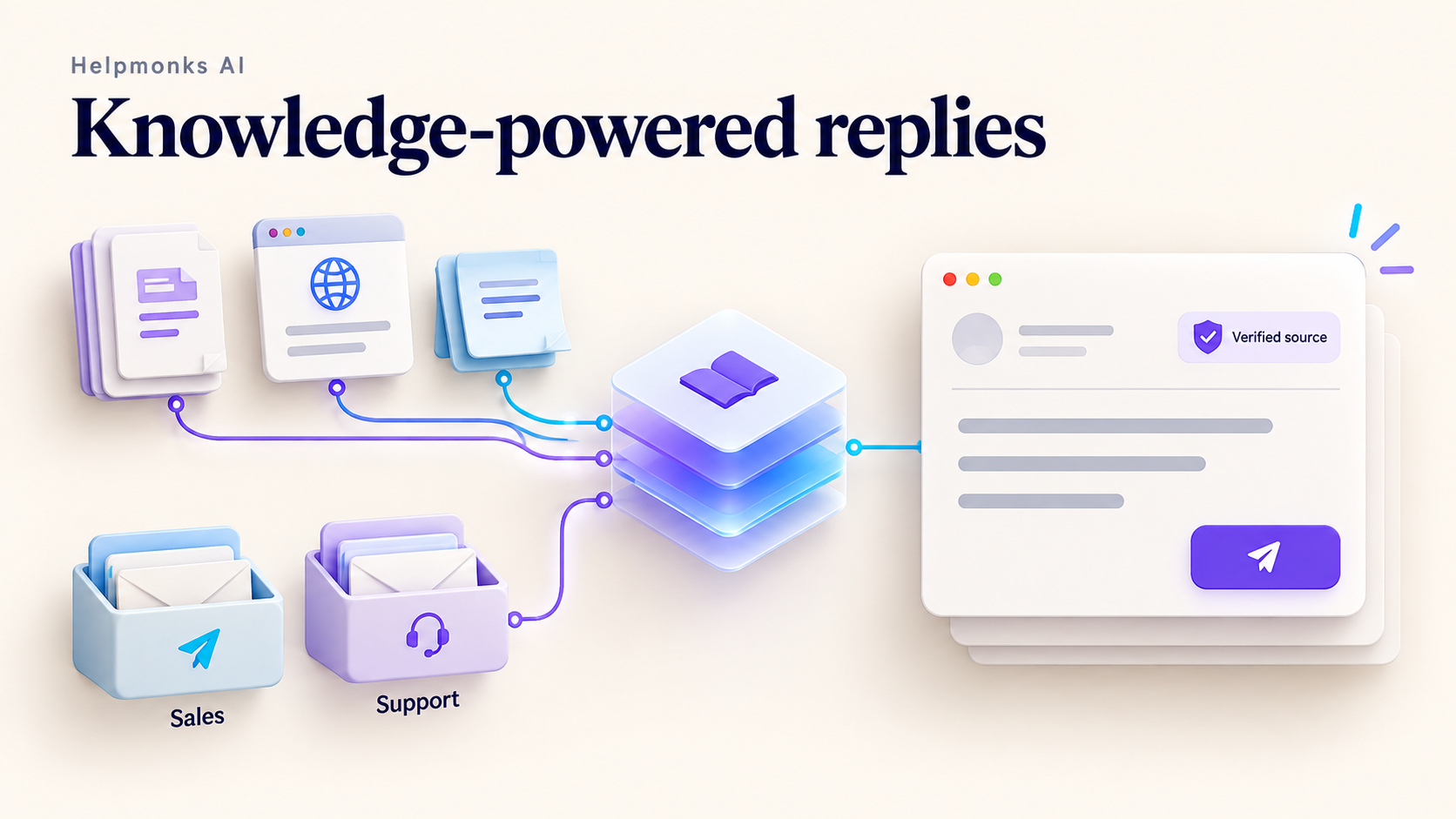
Connect your websites, help articles, and documentation, or bring in your team's project knowledge through Streamient. Helpmonks can draw on relevant material when preparing a reply, so you don't have to paste the same background into every request. Mailbox settings let you choose a useful starting point for different teams or products.
Suppose a customer asks how to configure an integration. Your instruction can explain what you want the reply to accomplish: acknowledge their question, walk through the documented setup, and ask for the missing detail. Your connected guide provides the supported steps. The selected style shapes the explanation.
That combination helps a shared inbox sound more like the organization behind it. Support can use the terminology in your help center. Sales can explain a product using the same maintained material. A new teammate can start with the knowledge your experienced colleagues have already recorded.
Keep those sources current and review the result before using it. A good writing prompt cannot supply a missing policy or confirm a feature that your documentation doesn't establish.

Check spelling, grammar, and style privately
A quick proofreading pass can involve more customer information than you intended to share. An unfinished reply might include an account detail, an explanation of a problem, or a discussion about pricing. Copying it into another website just to check a sentence adds another place for that information to go.
Helpmonks now brings private text checking into the editor. Spelling, grammar, and style checks run within our network, without sending the text to an external proofreading service.
Write your reply, choose the appropriate language, and review the underlined suggestions. Apply a correction when it helps, or keep your wording when it already says what you mean. You can save spelling words in your personal dictionary and retain wording that the checker flags. Manage those choices in your profile's writing settings.
This is useful for product names, customer terminology, and the phrases your team uses every day. The checker helps you spot possible mistakes while leaving the final wording with you.
Private processing here applies to the built-in text checker. AI drafting is a separate feature with its own configured provider. Keeping those two parts of the writing process clear matters when choosing how your team uses them.
Preview attached EML files inside Helpmonks
Customers sometimes send an original email as an attachment. An EML file contains that saved message, but downloading it and opening another mail application interrupts the conversation you're trying to resolve.
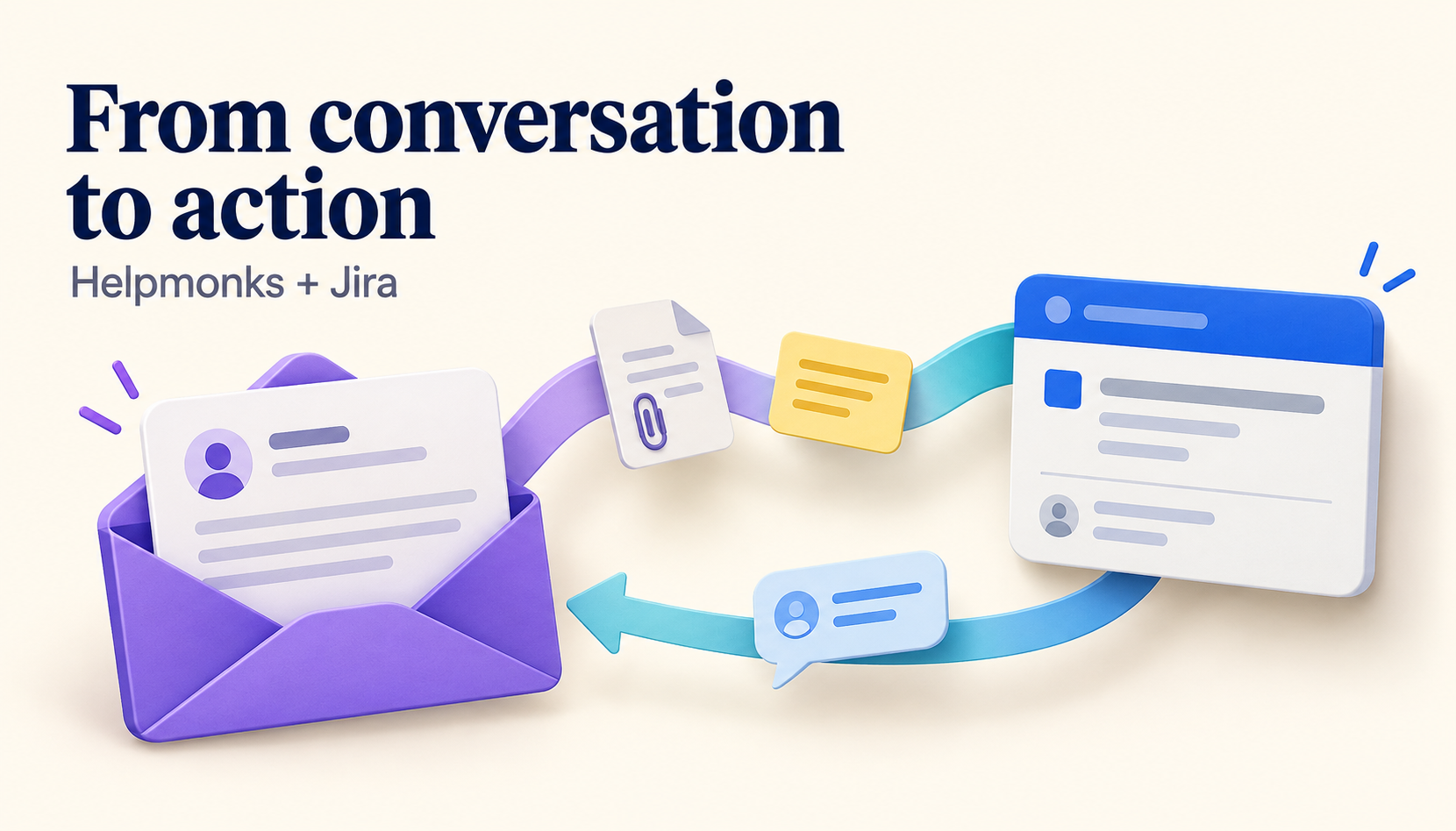
You can now preview attached EML files directly in Helpmonks. Open the attachment's preview to read the message above the current conversation. The preview shows available details such as the sender, recipients, subject, and date, along with the email's content.
That makes it easier to check what a customer originally received, read a supplier's message, or understand an email passed on by a colleague. Close the preview to return to the conversation. The original file remains available to download when you need it.
Remote images are blocked in the preview. You can inspect the attached message without automatically loading images from an outside server.
Try these updates in your next customer conversation: give AI a short instruction and a style, check the wording in the editor, and open an attached email without leaving Helpmonks. If you haven't connected your team's reference material yet, start with our guide to Knowledge Sources.