How to Add Live Chat to Your Website: Complete Guide

If you have ever watched a potential customer leave your website without buying or making contact, you know the frustration. They had questions. You had answers. But there was no fast way to connect. Adding live chat to your website closes that gap instantly. This guide walks you through exactly how to do it, what to look for in a live chat tool, and how to make the most of the feature once it is live.
Why Live Chat Matters for Your Business
Customers expect fast answers. Email works, but it is slow. Phone calls are intrusive. Live chat hits the sweet spot: instant, low-friction communication that fits naturally into a browsing session. Studies consistently show that businesses using live chat see higher conversion rates, lower cart abandonment, and stronger customer satisfaction scores.
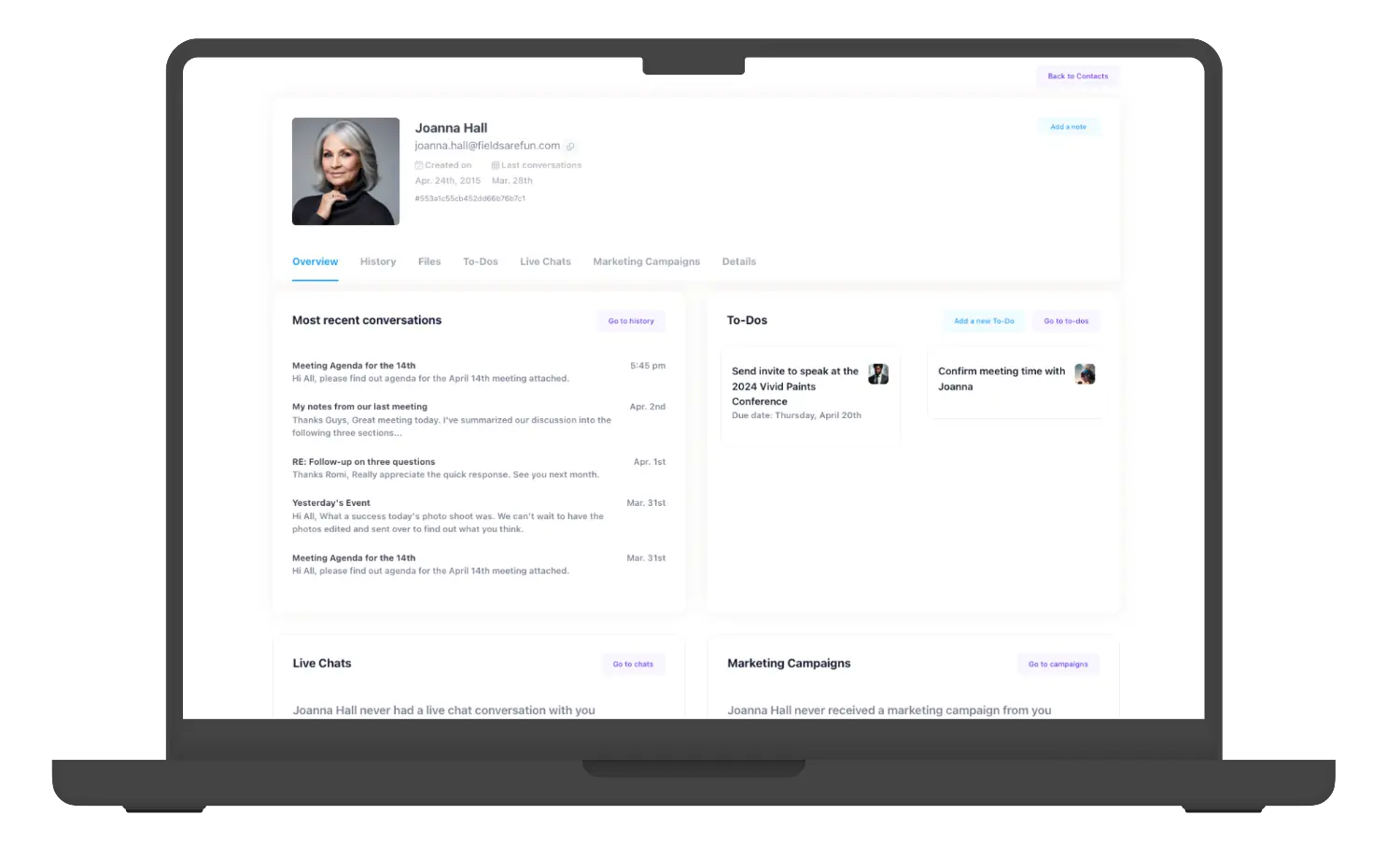
Beyond sales, live chat reduces pressure on your support team. Instead of one agent per phone call, a skilled support rep can handle three or four chat conversations at the same time. That efficiency compounds over time, especially when your team is working inside a shared inbox where every conversation is visible and assignable.
With Helpmonks features like shared inboxes, team mentions, and conversation assignments, live chat stops being a siloed tool and becomes part of a unified customer communication workflow.
What to Look for in a Live Chat Solution
Before you pick a tool, get clear on what you actually need. Here are the key factors to evaluate:
- Ease of installation: Can you add the chat widget with a single snippet of code?
- Team features: Can multiple agents handle chats? Are assignments and handoffs easy?
- Inbox integration: Does it connect with your existing email workflows?
- Mobile support: Can your team respond from their phones?
- Customization: Can you match the widget to your brand?
- Reporting: Do you get data on response times, volume, and satisfaction?
- Pricing: Is it fair for your team size and usage patterns?
If your team already uses a shared inbox for email support, it makes sense to choose a live chat tool that plugs into that same environment. Helpmonks connects live chat conversations directly into your shared inbox so nothing falls through the cracks. You can compare plans on the Helpmonks pricing page.
Compare the available approaches in our guide to live chat tools for websites. It can help you shortlist a platform before installing its widget.
How to Add Live Chat to Your Website: Step by Step
Step 1: Choose Your Live Chat Platform
Start by evaluating two or three tools against the criteria above. For small teams focused on customer support and email management, Helpmonks is a strong choice. It combines live chat with a shared inbox, so your team handles every customer touchpoint from one place. Larger enterprises may want a dedicated chat platform with deep CRM integrations, but for most growing businesses, simplicity wins.
Step 2: Sign Up and Configure Your Account
Once you have chosen a platform, create your account and walk through the initial setup. Most platforms will ask you to:
- Enter your website URL and business name.
- Set your team's availability hours.
- Create agent profiles for everyone who will handle chats.
- Customize the chat widget (colors, greeting message, name).
- Configure routing rules so conversations go to the right person or team.
Take time on the widget customization. A chat window that looks off-brand creates friction. Keep it clean, use your brand colors, and write a greeting that sounds like a real person, not a bot.
Step 3: Generate and Copy Your Chat Widget Code
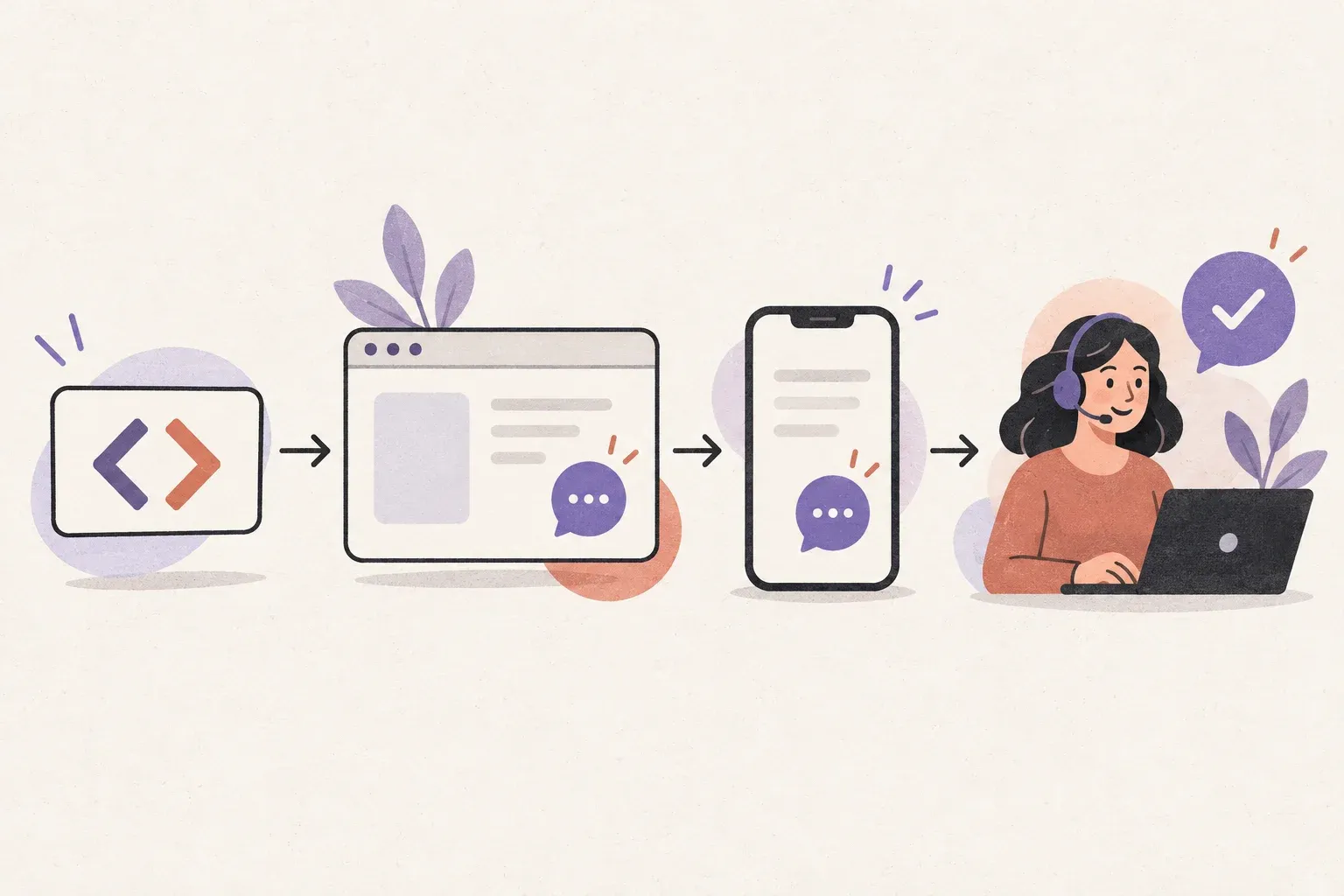
After setup, your platform will give you a small JavaScript snippet. It typically looks something like this:
<script src="https://yourprovider.com/widget.js" data-id="YOUR_ACCOUNT_ID"></script>
Copy this snippet. You will paste it into your website in the next step. Keep this tab open so you do not have to hunt for it again.
Step 4: Add the Snippet to Your Website
How you add the snippet depends on how your website is built:
WordPress
The easiest method is to use a plugin like Insert Headers and Footers. Paste the snippet into the footer section so it loads on every page. Alternatively, add it directly to your theme's footer.php file just before the closing </body> tag.
Shopify
Go to Online Store > Themes > Edit Code > theme.liquid. Paste the snippet before </body>.
Webflow
Navigate to Project Settings > Custom Code. Paste the snippet in the Footer Code section and publish.
Custom HTML site
Open your HTML file and paste the snippet before the closing </body> tag on every page, or in a shared template file if your site uses one.
Google Tag Manager
Create a new Custom HTML tag in GTM, paste the snippet, and trigger it on all pages. This approach works well if you are already managing marketing scripts through GTM.
Step 5: Test the Widget
Visit your website in a private browser window. The chat widget should appear in the corner. Send a test message and confirm your agent receives it in the platform dashboard. Check:
- Does the widget appear on all pages?
- Does it load quickly without slowing the page?
- Does the greeting message display correctly?
- Is the widget mobile-friendly on small screens?
- Do incoming chats trigger notifications for your team?
Step 6: Set Up Your Team Workflow
A live chat widget is only as good as the team behind it. Before you go live, agree on:
- Response time goals (under two minutes is a strong benchmark)
- Who handles chats during business hours and who covers off-hours
- Standard replies for common questions
- How to escalate conversations that need deeper support
- When to move a chat to email for follow-up
If your team uses Helpmonks, you can assign incoming chats to specific agents, add internal notes visible only to the team, and loop in colleagues with @mentions. Explore the full range of tools on the Helpmonks features page.
Common Mistakes to Avoid
Live chat can backfire if it is not set up thoughtfully. Here are the pitfalls teams run into most often:
- Showing the chat widget when no one is available, leading to abandoned conversations and frustrated customers. Use offline hours settings or an auto-reply that sets expectations.
- Using a generic bot greeting that feels impersonal. Write something specific to your product and audience.
- Ignoring mobile. A large share of website visitors are on phones. Test your widget on iOS and Android.
- Failing to train the team. Even a simple chat requires knowing what to say, how to handle escalations, and where to find product information fast.
- Not reviewing transcripts. Chat logs are a goldmine of product feedback, common objections, and support gaps.
Measuring Live Chat Success
Once live chat is running, track these metrics to gauge its impact:
- First response time: How long until an agent replies to a new chat?
- Resolution rate: What percentage of chats get resolved in the session?
- Customer satisfaction (CSAT): Post-chat surveys give you direct feedback.
- Chat volume by page: Which pages generate the most questions? That often points to UX problems or unclear copy.
- Conversion attribution: Are visitors who chat more likely to buy or sign up?
Review these numbers weekly at first, then monthly once the baseline is clear. Small improvements in first response time often produce outsized gains in satisfaction scores.
Live Chat vs Email: Do You Need Both?
The short answer is yes. Live chat and email serve different moments in the customer relationship. Live chat is for real-time questions during an active session. Email is for detailed conversations, follow-ups, and anything that requires documentation.
The best teams do not treat them as separate systems. They run both through a shared inbox where every conversation, regardless of channel, is tracked in one place. That way, if a customer chats today and emails tomorrow, the agent has context. Helpmonks is built exactly for this. You can learn more about how it works and what the investment looks like on the pricing page.
For the operating habits behind a useful widget, review our live chat customer service practices. Pair those habits with the setup options on the Helpmonks live chat page.
Getting the Most Out of Live Chat Long-Term
Once live chat is stable, look for ways to get more value from it:
- Use proactive chat triggers to reach out to visitors who have been on a pricing or checkout page for more than 60 seconds.
- Build a saved replies library for the questions your team answers five times a day.
- Connect chat transcripts to your CRM so sales has context on every pre-sale conversation.
- Review chat logs monthly with your product team to surface recurring pain points.
- Experiment with chat placement and timing to find what drives the most engagement on your specific site.
Live chat is not a set-and-forget tool. The teams that get the most out of it treat it as a living part of their customer support strategy, iterating on workflows and messaging as they learn what their customers actually need. Explore how Helpmonks can support that approach with its full suite of team communication tools.
Conclusion
Adding live chat to your website is one of the highest-leverage things you can do for customer support and sales. The technical installation is straightforward and takes less than an hour for most platforms. The harder work, and the more rewarding work, is building the team habits and workflows that make every conversation count. Start with the right tool, install the widget correctly, train your team on expectations, and measure what matters. You will see the impact in your customer satisfaction scores and your team's efficiency within weeks.